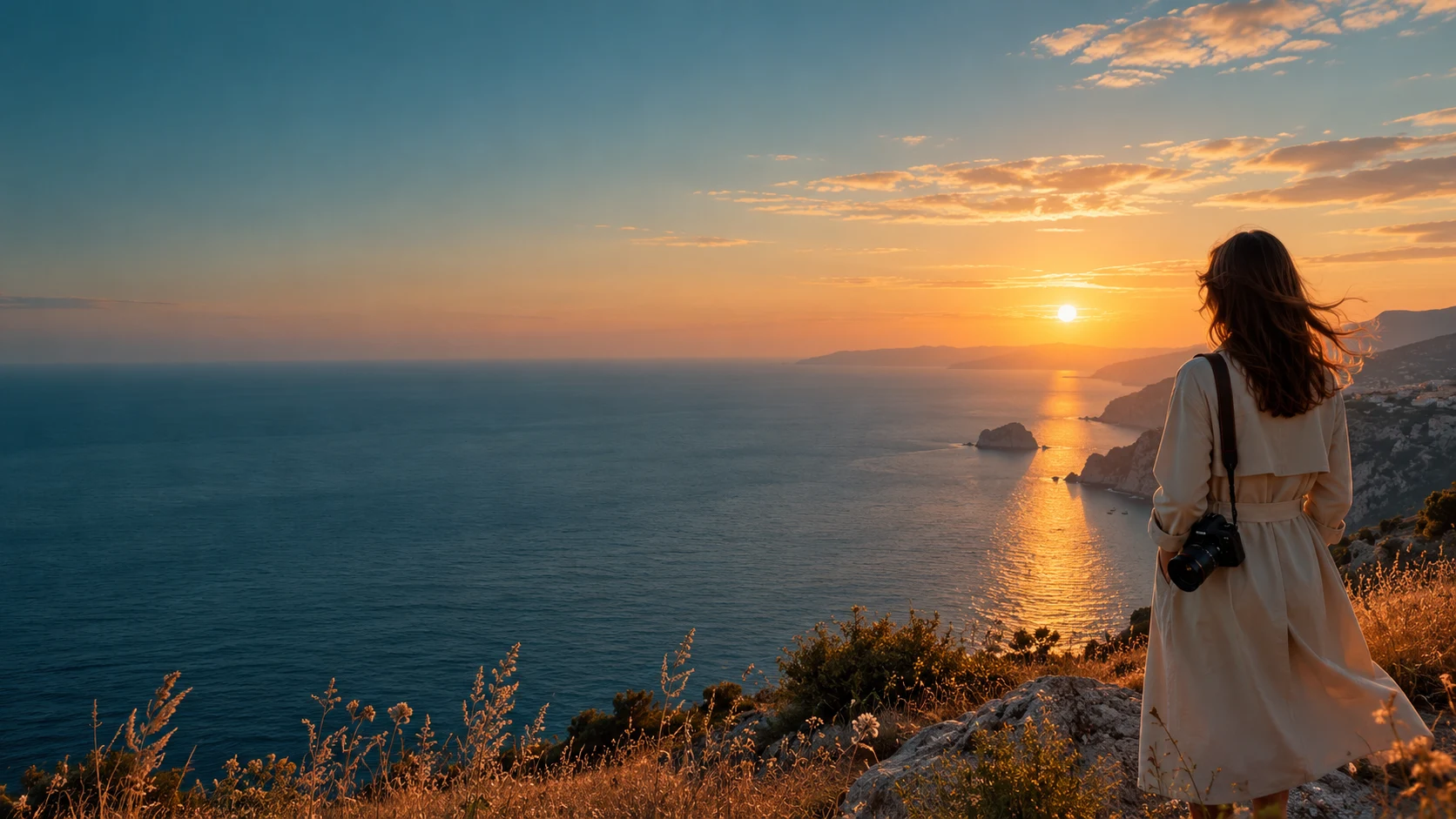


Between city lights
Portrait of a fictional adult woman in a camel coat at a rainy city cafe, reflections on glass, teal and amber cinematic lighting, natural skin texture.
 RapDirector
Describe a portrait, product shot, imagined place or illustration. Add a reference when you want to guide the composition, then refine the details.
From natural portraits to imaginary worlds: explore image studies with short, reusable prompts and clear creative choices.
Choose a prompt. Change a detail. See where it takes you.
Portrait of a fictional adult woman in a camel coat at a rainy city cafe, reflections on glass, teal and amber cinematic lighting, natural skin texture.
Fresh lemons and water droplets on a pale blue ceramic plate, hard Mediterranean sunlight, vivid yellow and cobalt, editorial still life.
A detailed botanical ink illustration of magnolia flowers with sage leaves on warm ivory paper, refined black linework, delicate pale pink washes.
A studio shot, a bold campaign, an imagined world. See how setting and light change the story of the same product concept.

Soft light and a simple pedestal keep attention on shape, material and the product itself.

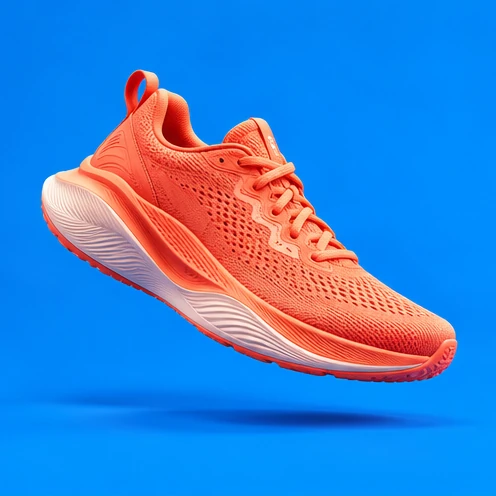
Coral acrylic and direct light shift the same headphone concept toward a bold campaign.
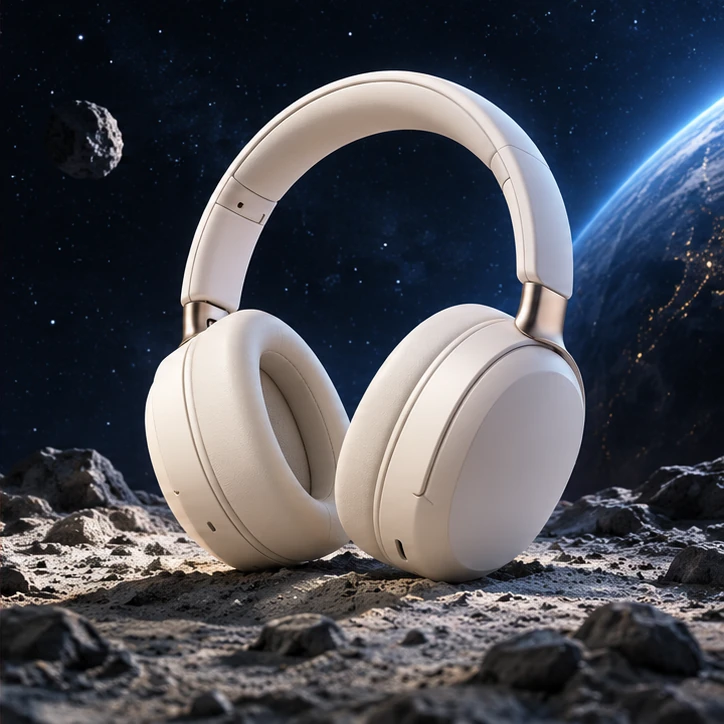
Moon rock and a restrained blue rim light give a familiar object an unexpected setting.
 THE IDEA, MADE VISIBLE
You do not need a long prompt. Give your AI image generator four useful details.
Choose your aspect ratio before creating. Describe where the subject belongs and leave space for anything you plan to add later.
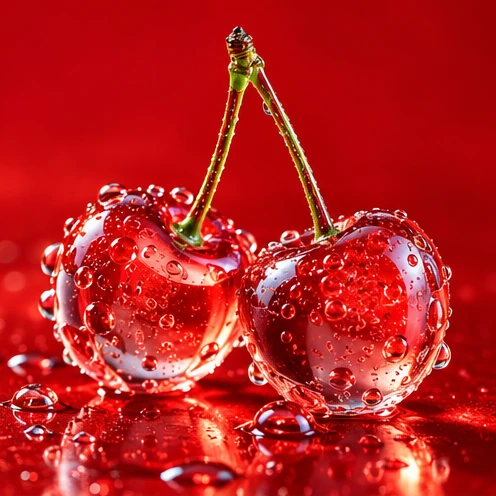 1:1
1:1A balanced square keeps one subject in focus. Leave comfortable space around its edges.
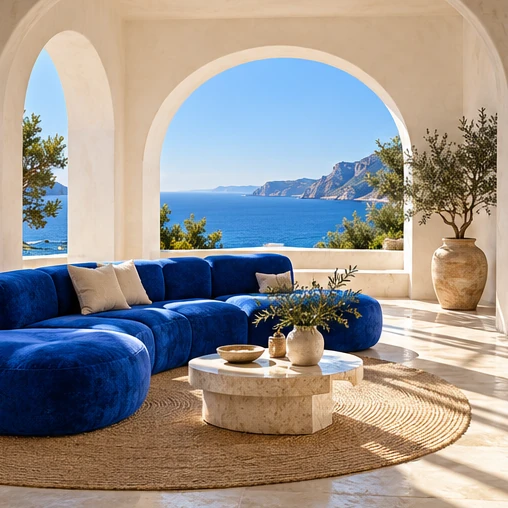 16:9
16:9A wide frame gives a scene breathing room. Ask for negative space when you need room for a headline.
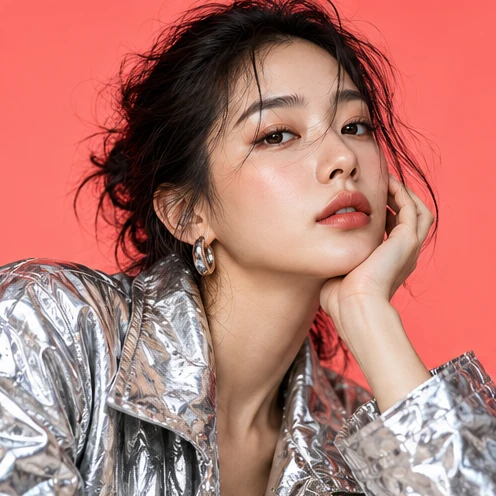 9:16
9:16Place the subject within the central area and keep important details away from the top and bottom.
A reference can guide composition, colors or a subject. Choose a clear image, then say what you want to keep and what should change.
Add a referenceUpload a JPG, PNG or WebP up to 100 MB. Use a sharp image with the main subject visible.
Try a different setting or lighting direction. Name the details that should stay consistent.
Check shape, edges, faces and small features.
Choose a workflow for the image you need. A clear input is more useful than a longer prompt.
 START FROM A PROMPT
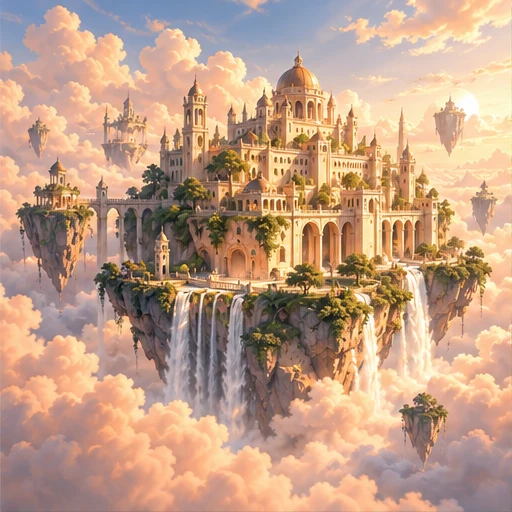
Describe an original scene, illustration or composition. A text to image generator works from your words, so include the subject, setting, light and framing.
A floating coastal city above soft clouds, warm evening light, wide architectural composition.
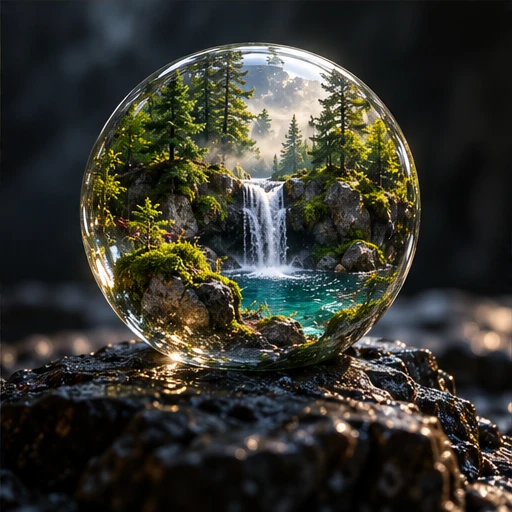 GUIDE WITH A REFERENCE
Use a reference image to guide a new background, style or composition. Choose a model with image inputs, upload your reference, and describe both the change and the details to preserve.
Keep the glass sphere and its miniature forest; change the surrounding background to a warm ivory studio.
Explore photographic portraits, product shots and lifestyle scenes. Describe lens perspective and lighting; inspect faces, hands and small product details before use.
Try watercolor, paper craft, editorial illustration or stylized 3D concepts. Name the medium and texture instead of relying on a style label alone.
Reference-based edits depend on the selected model. Describe a background or style change and review what moved.
Create visual concepts for packaging, shop banners and product backgrounds. Check colors, geometry and any text against the real product.
Plan a square post, vertical cover or landscape banner. Leave space for a headline and add final typography in your own design editor.
Describe a fictional character or use an authorized reference. Keep a short list of defining details; consistency can vary between generations.
Have a still image you want to animate?
Explore image to videoStart small. Be specific. Keep the details that work and refine the ones that don’t.
Bring your idea to lifeStart with a subject, a setting and a feeling. Add a reference image if you already have a direction.
Choose the framing and refine your prompt. For video, add a clear action and camera movement.
Inspect the result, adjust a detail, and download the version that fits your project.
A useful visual starts with a clear job to do.
Build a direction around the result you need.
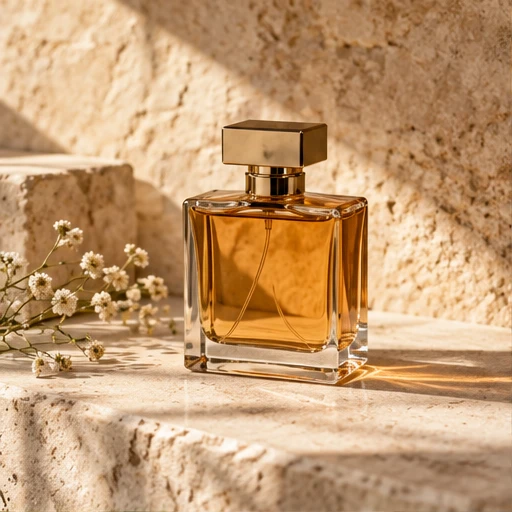
Explore a product in different lighting, materials and compositions. Describe the surface, shadows and background to create a more considered visual direction.
Try this direction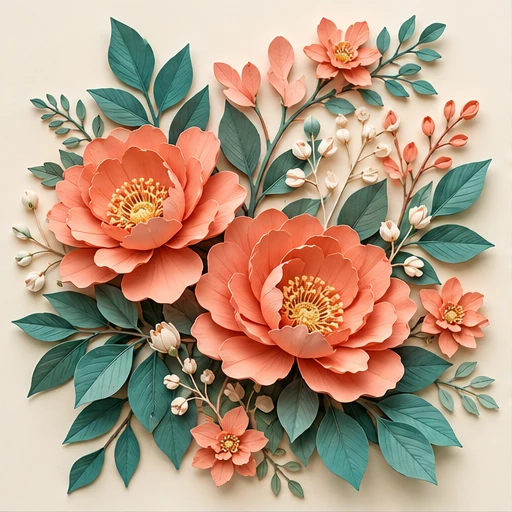
From tactile paper-cut scenes to soft watercolor: use a clear style reference to shape color, texture and composition. Save the prompt as a starting point for your next image.
Try this direction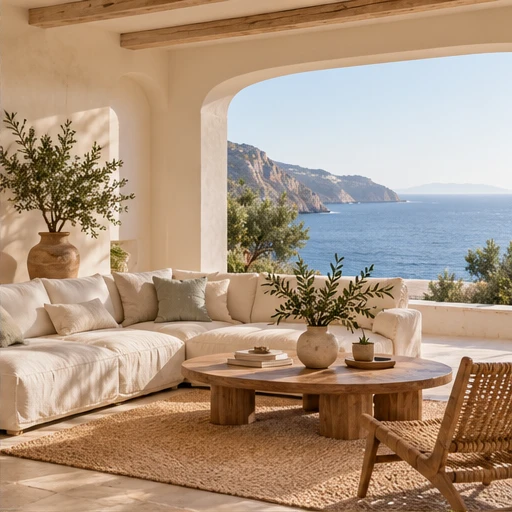
Build an architectural concept around light, materials and proportion. Use the result as a visual study, then refine the details that matter to your project.
Try this directionGetting started with ai image generator.
Write what you want to see, choose an aspect ratio, and submit your prompt. The image model creates a new image based on that description. Review the result and refine one detail at a time.
Describe the main subject, the environment, the lighting, and how the shot is framed. For example: an amber perfume bottle on pale stone, late afternoon side light, close-up product photograph.
Choose Edit image in Create Studio, add a reference and describe the change. Editing options depend on the model.
Use JPG, PNG or WebP files up to 100 MB. The selected model may have additional limits. A sharp, well-lit reference with an unobstructed subject is easier to interpret.
Choose square, landscape or portrait in the workspace. A landscape composition works well for website banners, while portrait framing suits social posts.
Each generation is unique. Use the example’s prompt as a starting point, then adjust the model, lighting and composition to get the look you want.
Sign in to claim 150 credits on your first day, then 100 every 24 hours. Daily credits expire after 24 hours. Choose a Free model; the Create button shows its cost.
Text to image creates a scene from a written description. Image to image also uses a reference to guide the composition or appearance. Select a model with an image input for the second workflow.
You can request a photographic style by describing the lens, lighting and setting. Generated images may contain inaccurate hands, text or product details. Check these details before using the result.
This workspace focuses on generation and model-supported image transformations. It is not a layer-based photo editor. Use a dedicated editing application for precise masks, final typography and detailed retouching.
Turn a prompt or a reference into your next image or video. Start with one idea and make it your own.
Start creating